
Saved Prompts
If you find yourself typing the same question or instructions over and over, save them. ParseSphere lets you turn any chat message into a reusable prompt — or write one from scratch — and load it back into the message box whenever you need it again.
Saving a Prompt
There are three ways to save a prompt: bookmark something you've already typed in a conversation, write one from scratch, or start from a ready-made template.
Bookmark a Chat Message
The fastest way to save a prompt is to bookmark a message you've already sent.
- Send a message in any conversation and wait for the assistant to finish responding.
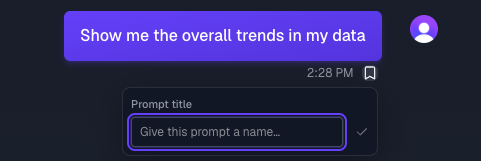
- Beneath your message, next to the timestamp, click the bookmark icon.
- In the popover that appears, type a prompt title and press Enter (or click the checkmark) to save it.
Information
You can only bookmark your own messages — the questions and instructions you send — not the assistant's responses. Any of your messages in the conversation history can be bookmarked, not just the one you just sent. Click the bookmark icon again to remove it; there's no confirmation step.
Create a Prompt from Scratch
You don't need an existing chat message to save a prompt.
- In the workspace sidebar, click the small dropdown arrow next to + New Chat.
- Select New Prompt from the menu.
- Give it a title and write the prompt text in the Instructions box.
- Click Create (or press
⌘/Ctrl + S
) to save it.
Prompts created this way appear right alongside anything you've bookmarked from chat — they all live in the same list.
Start from a Template
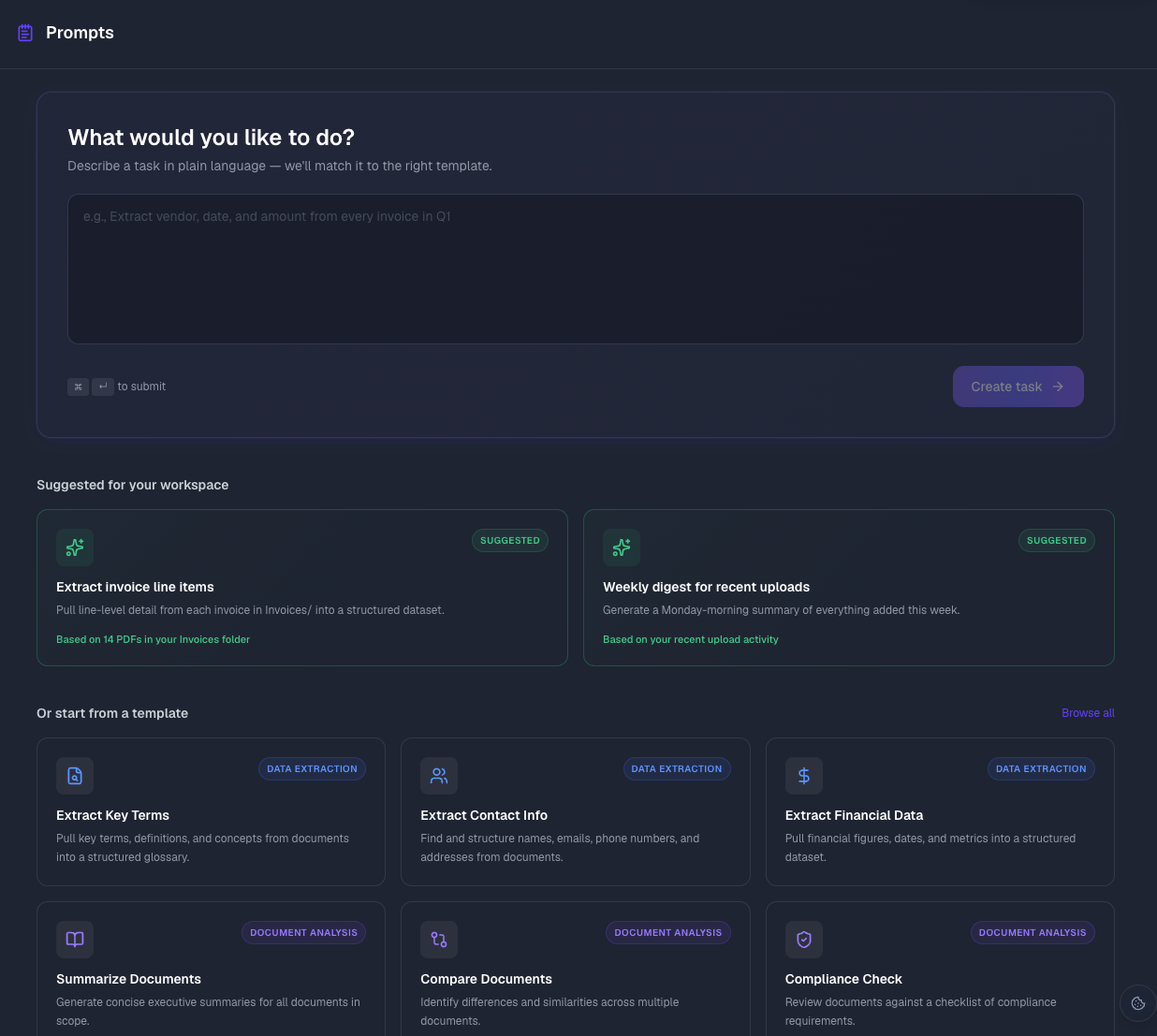
ParseSphere ships with a library of ready-made prompts for common tasks, grouped into categories like Data Extraction, Document Analysis, Data Cleaning, and Reporting.
- From the Prompts panel, click Browse templates (or Browse all, if you don't have any saved prompts yet) to open the template gallery.
- Filter by category or use the search box to find one that fits.
- Click a template card to preview its default instructions.
- Edit the text if you'd like, then click Save Prompt.
Tip
Saving from a template works just like saving from scratch — you're picking a starting point for the Instructions text, not launching an automated job. The saved prompt is yours to edit, load into chat, or delete like any other.
Where Your Saved Prompts Live
Open the Prompts section from the icon rail on the left side of the workspace sidebar to see every prompt you've saved. From here you can:
- Search by title or content using the search box
- Open a prompt by clicking its title
- Select prompts with the checkboxes and click Delete to remove several at once
Who Can See What
Saved prompts belong to the workspace they were created in — they don't carry over to your other workspaces. The workspace owner can see every saved prompt in the workspace; everyone else only sees the prompts they personally created. Only a prompt's creator or the workspace owner can edit or delete it, and workspace viewers can see saved prompts but can't create, edit, or delete them. See Workspaces for more on roles.
Loading a Saved Prompt into Chat
Saved prompts are meant to be reused. Start a new conversation — before you send a first message, you'll see a row of three prompt groups below the chat input: Saved, Analyze, and Suggested. Your saved prompts live under Saved.
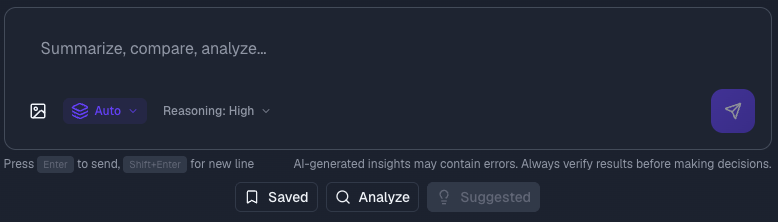
Click Saved to open the group and browse the prompts you've saved.
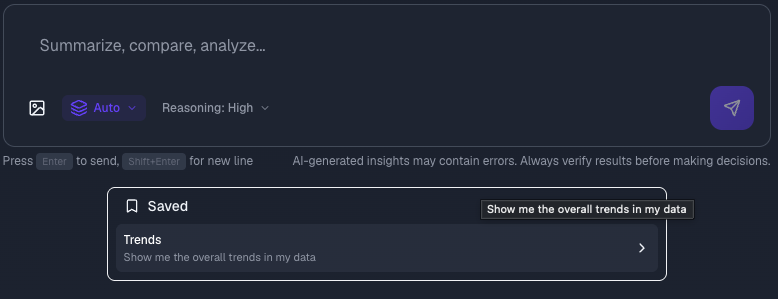
Then click any prompt to load its full text into the message box. Edit the wording if you need to, then press Enter to send.
Tip
Selecting a saved prompt fills in the message box — it doesn't send automatically, so you can tweak the wording first. If you haven't saved any prompts yet, the Saved button stays disabled until you save your first one. These buttons only appear at the start of a new conversation, before you've sent a message.
Editing a Saved Prompt
Open a saved prompt from the Prompts list to change its title or content, then click Save (or press ⌘/Ctrl + S).
- Renaming a prompt updates it in place.
- Changing the content saves a new version — ParseSphere keeps every previous version so you can compare or roll back later.
Prompts with more than one version show a version badge (for example, v2) next to the title. Click it, or the clock icon in the header, to open Version History: select an older version to preview its content, then click Restore this version to make it current again.
Deleting a Saved Prompt
You can remove a saved prompt in a few ways:
- Open it from the Prompts list, click the trash icon in the header, and confirm.
- From the Prompts list, select one or more prompts with the checkboxes and click Delete.
- If you bookmarked it from a chat message, click the bookmark icon on that message again to remove it instantly — no confirmation needed.
Warning
What's Next?
- Chat with Your Data — Learn more about asking questions and managing conversations
- Workspaces — Understand roles and how sharing affects what teammates can see